There are several different ways you can create a budget, and many budgeting apps have built-in tools to make the process easier. But if you have privacy concerns or you want the ability to customize your budget in a way that works for you, an Excel spreadsheet — or Numbers if you own a MacBook — can be a great choice.
Here’s what you need to know about how to create a budget in Excel and some of the alternatives to consider.
How to create a budget in Excel in 5 easy steps
Excel can be a great option for new budgeters trying to find an approach that works for them, as well as experienced budgeters who want full control over the process. Here are some steps you can take to get started.
1. Review income and expenses
Take a look at your income and expenses over the last few months to get an idea of how much money you take home and where it goes.
Regardless of how complex you want your budget to be, it may be a good idea to categorize all of your expenses as you begin to help you determine how much money you want to allocate toward your financial goals versus your lifestyle.
2. Construct your budget
If you’re not using a template, you’ll want to create your Excel budget based on your preferred approach. If you want a simple approach, for instance, you can create more general budget categories, such as:
- Income
- Essential expenses
- Debt payments
- Savings and investments
- Charitable contributions
- Discretionary spending
Alternatively, if you want a more detailed view of your spending with a zero-based budgeting approach, you could break those down into further categories. For example, under necessary expenses, you could list out your rent or mortgage payment, insurance premiums, groceries, utilities, childcare, clothing, and medical expenses.
For discretionary spending, you could include streaming subscriptions, entertainment, dining out, and other lifestyle-related expenses.
3. Set your spending goals
Each month, you’ll want to evaluate your upcoming expenses and decide how much you want to spend in each category of your budget.
Fixed expenses such as rent, internet, phone bills, and debt payments typically won’t change over time, so you don’t have to update them every month. For other variable expenses, however, you can make adjustments based on planned activities and your financial goals.
As you go through this process each month, don’t forget recurring expenses that don’t get charged every month. For example, you may have an auto insurance premium every six months, and if you forget to account for it in your budget, you may end up overspending. A sinking fund for one-off or infrequent expenses can help you plan for them.
4. Determine how strictly you want to stick to your budget
If you’re in a relatively good financial situation, you may have the freedom to give yourself some flexibility with your budgeting goals.
However, if you’re struggling to get by or you have important financial obligations or objectives to satisfy, you may be more willing to align your spending with your monthly goals.
You’ll also need to determine how often you want to update your budget. Because this requires you to log in to your financial accounts to track your expenses, daily updates can be onerous.
However, updating your transactions only once a month can make it hard to evaluate how well you’re sticking to your budget. As a result, once a week is often a good cadence.
5. Reassess your approach
It can take several months for you to find the right balance with your budget, especially if you’re creating one for the first time.
As you track your spending each month, evaluate how effective you are at working toward your goals. If you notice that some of your goals are too rigid or relaxed, make adjustments as you go.
While you’ll be bombarded by specific advice about how you should manage your money, you’ll find that creating a budget is personalized to your needs and priorities can help you minimize unnecessary stress.
Free Excel budget templates
If you’re thinking about using a template to help you design your budget, here are a few options you can try, including budget templates for specific savings goals:
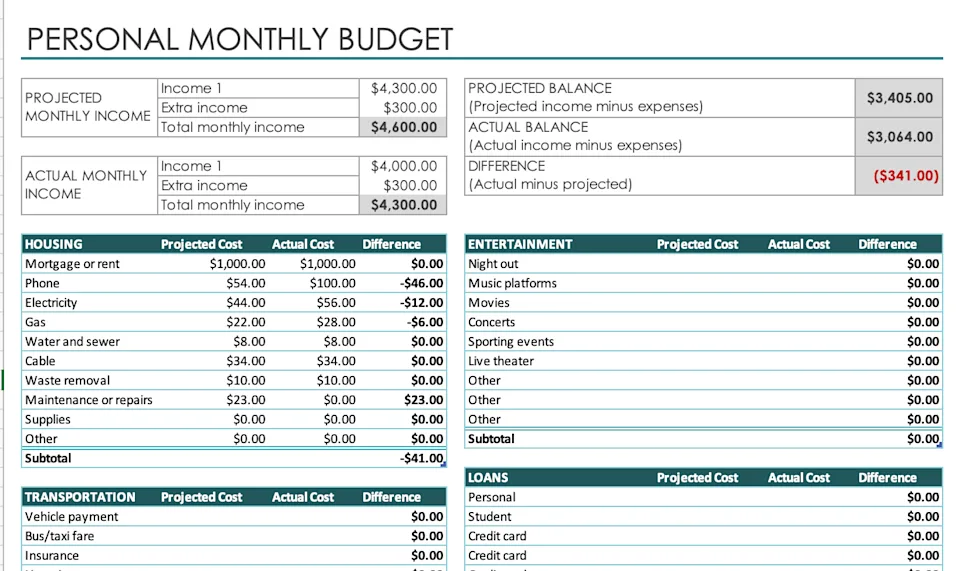
Free personal budget template
This is a basic template for tracking your personal income and expenses.
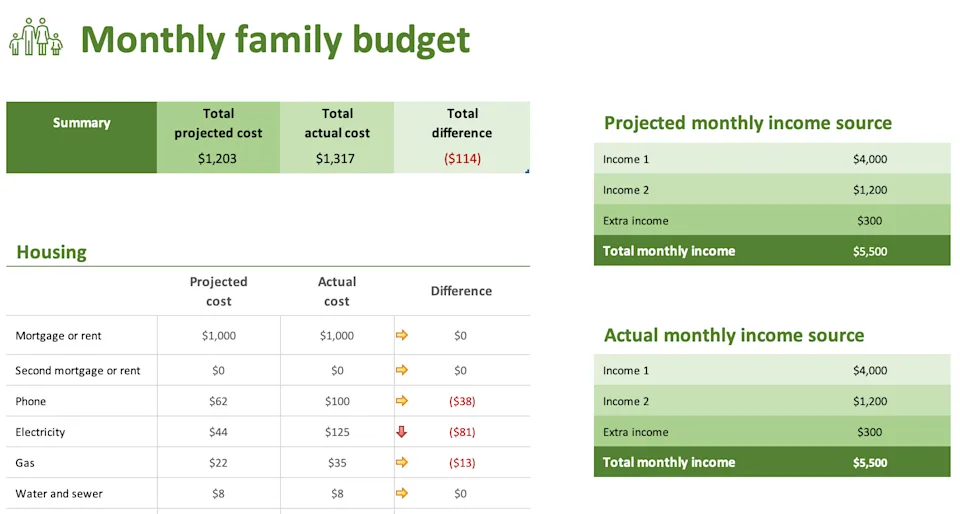
Free family/household budget
If you have a large family or multiple members of your household, this budget template can help you budget as a unit.
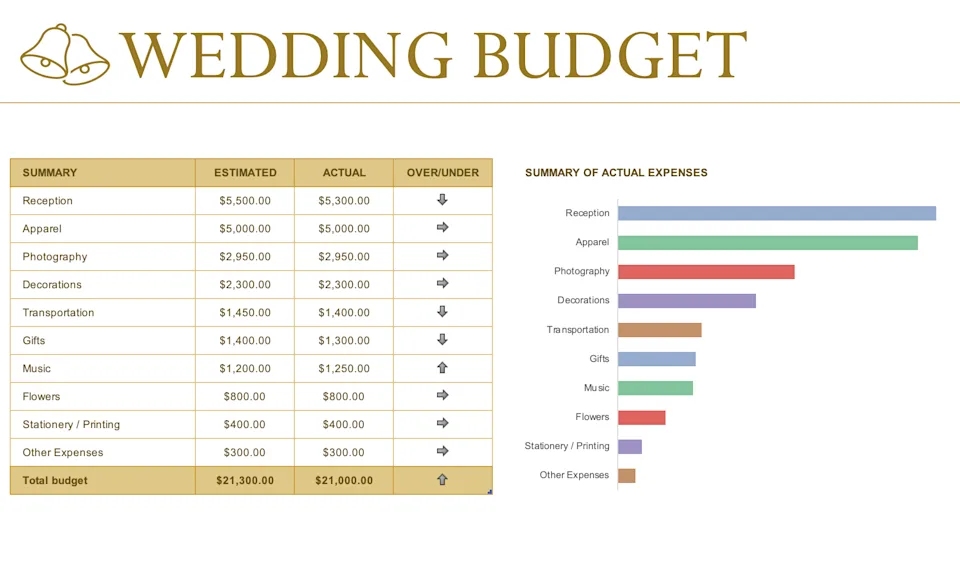
Free wedding budget template
If you’re saving money for a wedding, this budget template can help you plan for the big day.
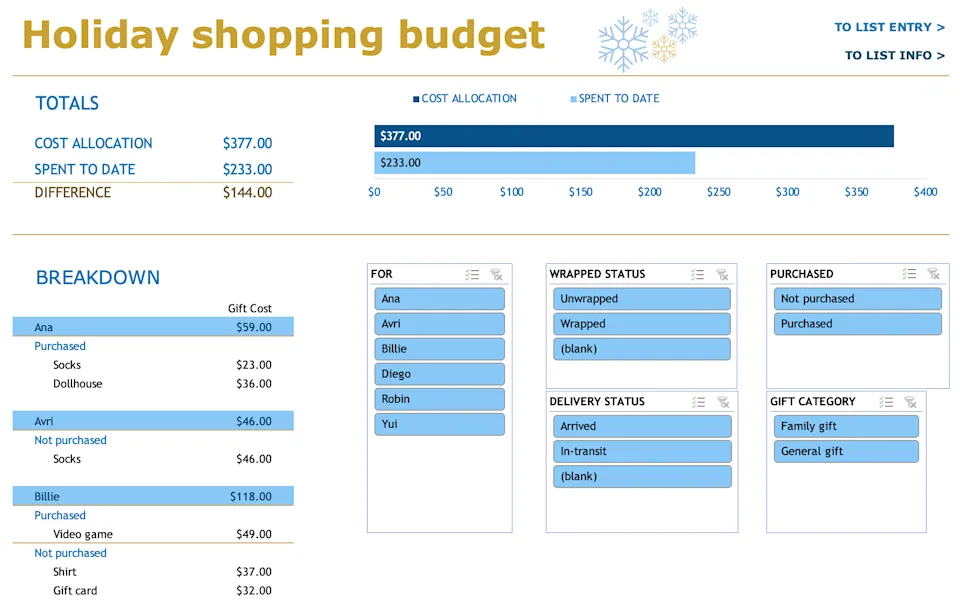
Free holiday shopping budget template
The holidays can easily derail your budget if you aren’t careful. Use this budget template to plan for the upcoming holiday season and keep your spending in check.
Are there any alternatives to budgeting in Excel?
If you’re not sold on using Excel to manage your budget, or you simply want other options to compare, here are some to consider:
- Google Sheets: One of the downsides of using Excel is that it lives strictly on your hard drive — cloud access requires a subscription. If you want the flexibility to manage your budget wherever you are, you could consider Google Sheets instead. Google Sheets is also free to use.
- Budgeting apps: Budgeting apps make it easy to manage your money by providing a template, usually with customization options to personalize your budget. Many of them also allow you to import transactions from multiple financial accounts into one place, making it easier to track your spending with little effort. That said, many budgeting apps also charge monthly or annual subscription fees.
The bottom line
Creating an Excel budget can help you better manage your money and accomplish your financial goals. But depending on your experience with the spreadsheet program and your preferences, you may want to consider using a template to help you get a framework to build on.
If you’re not familiar with Excel at all or you simply want to save time, consider a budgeting app that can help by doing some of the legwork associated with budgeting. Regardless of what you decide to do, it’s crucial that you find the best approach for you.
Excel gives you full control over customization and keeps your financial data private on your hard drive without requiring monthly or annual subscription fees. While budgeting apps automate transaction imports, Excel is ideal if you want to tailor your categories to your exact financial goals or use free templates for specific needs like personal, family, wedding, or holiday budgeting.
A simple budget groups your money into broad categories like income, essential expenses, debt payments, savings, and discretionary spending. A zero-based budget breaks those down into much finer details—listing exact line items like rent, groceries, utilities, streaming subscriptions, and dining out—so that every dollar of your income is assigned a specific job.
You can prepare for infrequent bills—such as semi-annual auto insurance premiums or annual subscriptions—by setting up a sinking fund. Setting aside a small amount each month for these predictable one-off expenses prevents them from derailing your monthly budget when the bill arrives.
Updating your budget once a week is generally the most effective cadence. Tracking expenses daily can quickly become exhausting, while waiting until the end of the month makes it harder to catch overspending early and adjust your habits in time.
If you want cloud access across devices without paying for a Microsoft subscription, Google Sheets is a free alternative with similar spreadsheet functionality. If you own a MacBook, Apple’s Numbers app is another built-in option for creating custom spreadsheets.

Suresh Saini is the Founder and Lead Financial Researcher at Tax Assistant. He holds a Master of Commerce (M.Com) degree with a specialized focus on Advanced Accountancy, providing him with a robust academic and analytical foundation in complex accounting principles, credit systems, and personal finance structures.
Driven by a passion to democratize financial literacy, Suresh has spent years analyzing and decoding shifting fiscal guidelines. At Tax Assistant, he manages the platform’s core editorial direction, transforming dense government updates and complex banking parameters into structured, clear, and actionable guides for both individual taxpayers and small businesses across North America.
Before launching taxassistant.org, Suresh conducted deep financial and market dynamics research, focusing on asset management, personal wealth optimization, and strategic tax planning. His dedication to data integrity ensures that every piece of news, breakdown, or analysis published under his leadership is rigorously fact-checked by certified tax professionals and aligned perfectly with contemporary regulatory frameworks.